
There are two ways to send the latest Market Talk newsletter to your Contacts in Connections but both use eCards to make it happen.
- Send link to latest Market Talk newsletter. PREFERRED METHOD.
- Send Market Talk PDF as an attachment.
Send as a Link (preferred method)
Uses the same basic steps as above but instead of uploading an attachment you can simply place a link to the latest Market Talk in the body of your email.
- Go to eCards & Email Marketing.
- Click the "Add Campaign" button.
- Give the Campaign a name and click "NEXT".
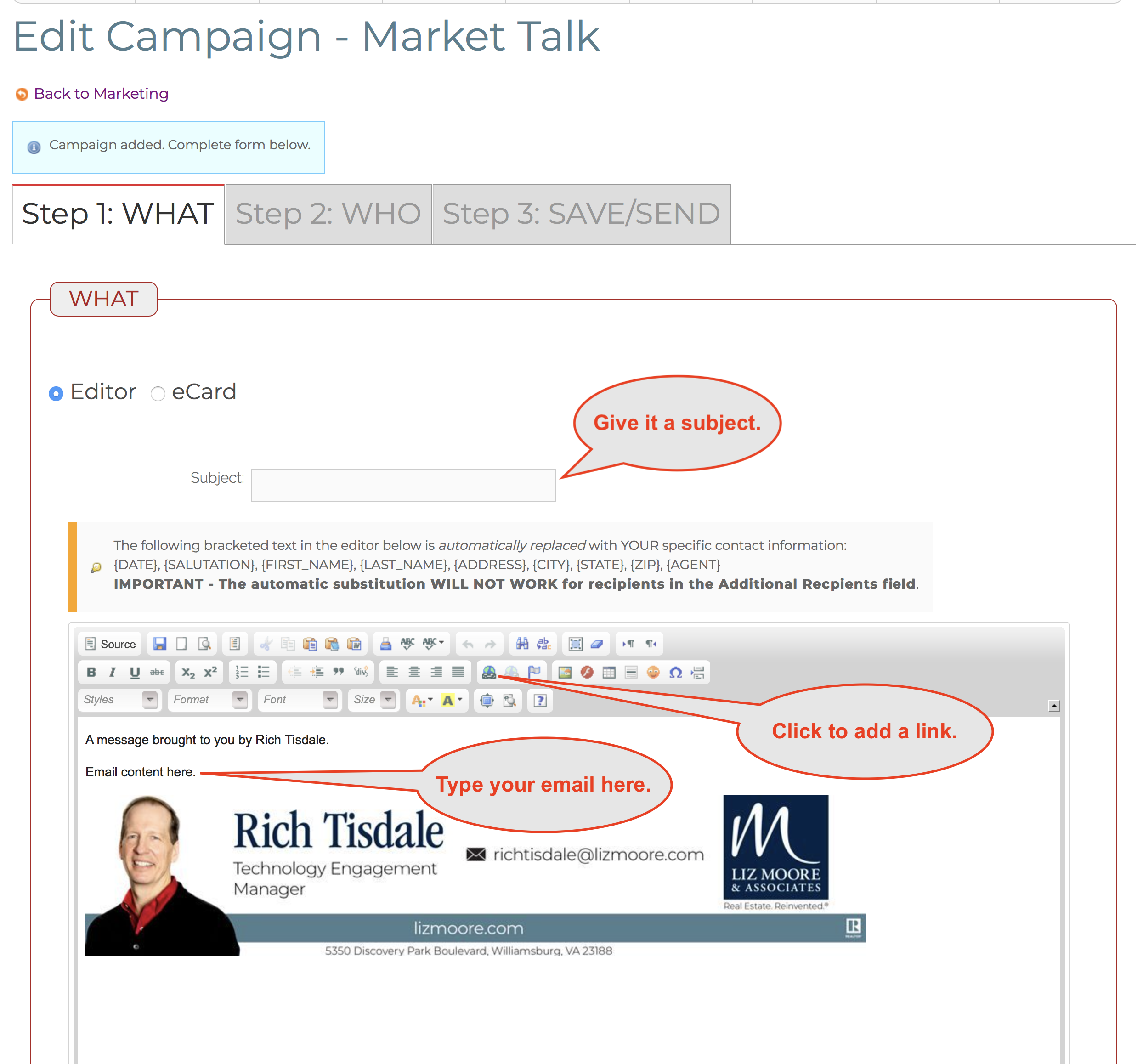
- Give your email a subject and type the content of your email into the editor. (The editor should load with some simple default content including your signature (if you uploaded one).
- Copy this address: https://www.lizmoore.com/markettalk
- Type some text to use as a link into your email body and select it.
- Click the link button in the toolbar.

- Paste the address into the URL field. You now have a link the recipient can click to go to https://www.lizmoore.com/markettalk
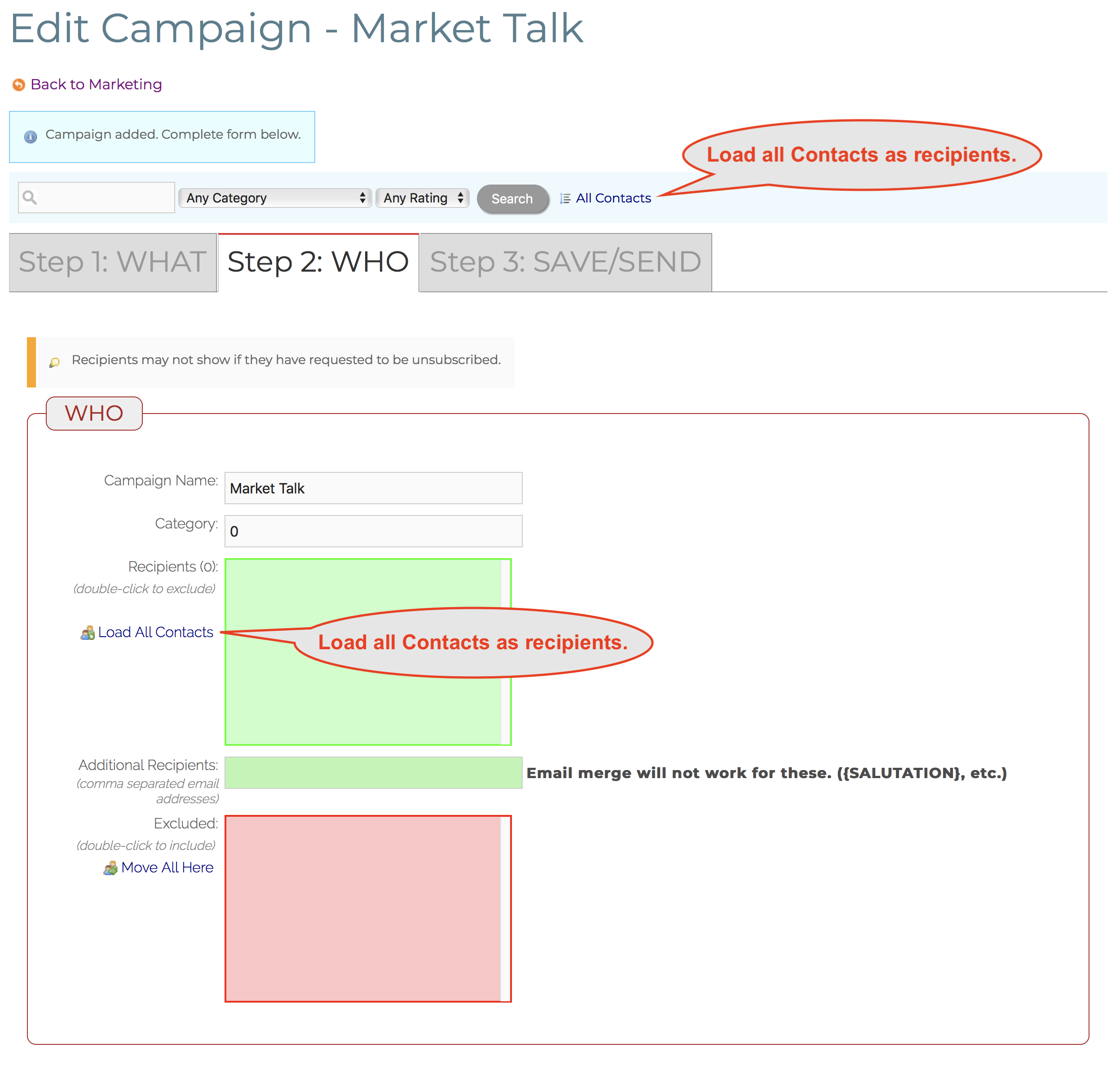
- Click the "Step 2: WHO" tab above the editor.
- Click "All Contacts" from the top search bar OR click "Load All Contacts" next to the green Recipients box. This will load all your Contacts into the Recipients. (The system will automatically exclude any Contacts that is unsubscribed or does not have an email.)
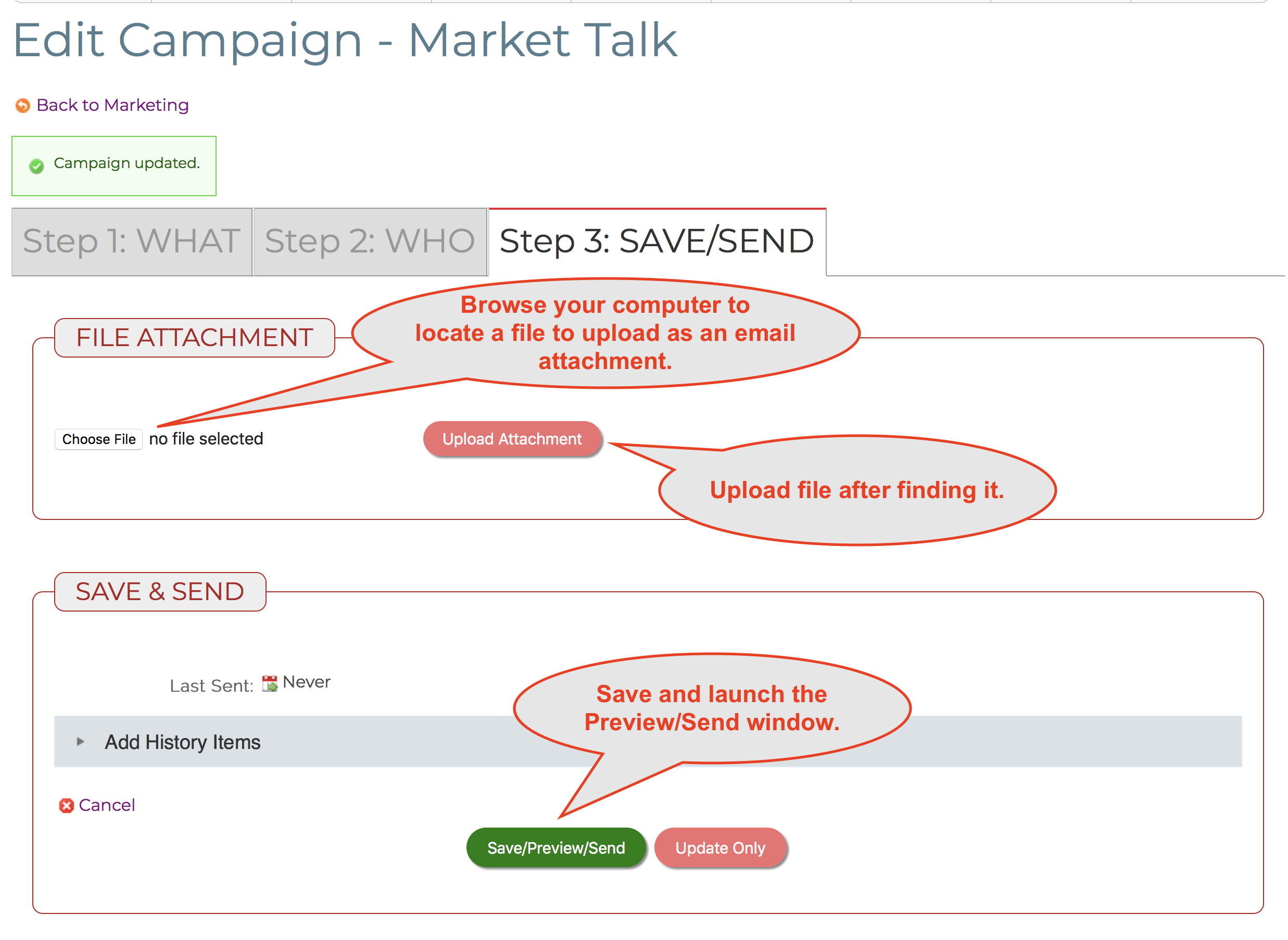
- Click the "Step 3: SAVE/SEND" tab at the top.
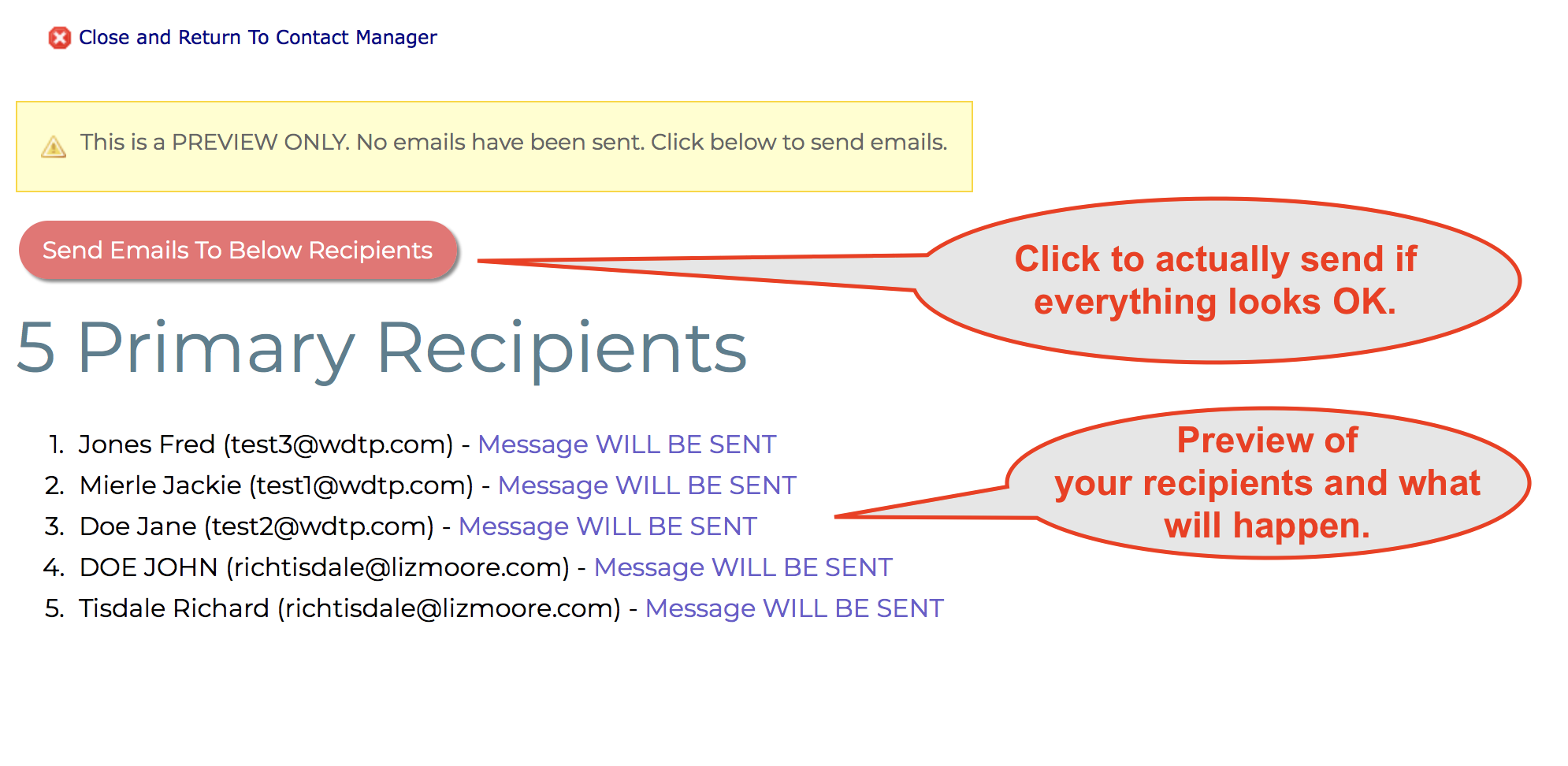
- Click the green "Save/Preview/Send" button to get a preview screen of your recipients.
- If everything looks OK then click "Send Emails to Below Recipients" to actually send the emails out.
Send as an Attachment
IMPORTANT: Sending eCards with attachments greatly increases the chances your email will be flagged as SPAM.
- Go to eCards & Email Marketing.
- Click the "Add Campaign" button.
- Give the Campaign a name and click "NEXT".
- Give your email a subject and type the content of your email into the editor. (The editor should load with some simple default content including your signature (if you uploaded one).
- Click the "Step 2: WHO" tab above the editor.
- Click "All Contacts" from the top search bar OR click "Load All Contacts" next to the green Recipients box. This will load all your Contacts into the Recipients. (The system will automatically exclude any Contacts that is unsubscribed or does not have an email.)
- Click the "Step 3: SAVE/SEND" tab at the top.
- Click the "Choose File" button under FILE ATTACHMENT to browse your computer for the Market Talk PDF file.
- Click "Upload Attachment" button.
- Once the file is uploaded click the file name to preview the file and make sure it looks OK.
- Click the green "Save/Preview/Send" button to get a preview screen of your recipients.
- If everything looks OK then click "Send Emails to Below Recipients" to actually send the emails out.
Comments
0 comments
Please sign in to leave a comment.