
Easily find Contacts you have imported either recently or long ago. For instance, if you imported a bunch of Contacts but got the format wrong you may want to delete all of them, correct the import file, and then re-import them.
How It Works
Whenever you import Contacts into Connections, all the imported Contacts are "tagged" in the Notes field with the date and time of import. The format is always the same and looks like the below.
Example: IMPORTED ON 8/23/22 5:08 PM
How To Find Imported Contacts
- Go to All Contacts in Connections.
- Find a Contact that you have recently imported.
- Click to edit the Contact, go to the Edit tab, and scroll down to the NOTES field.
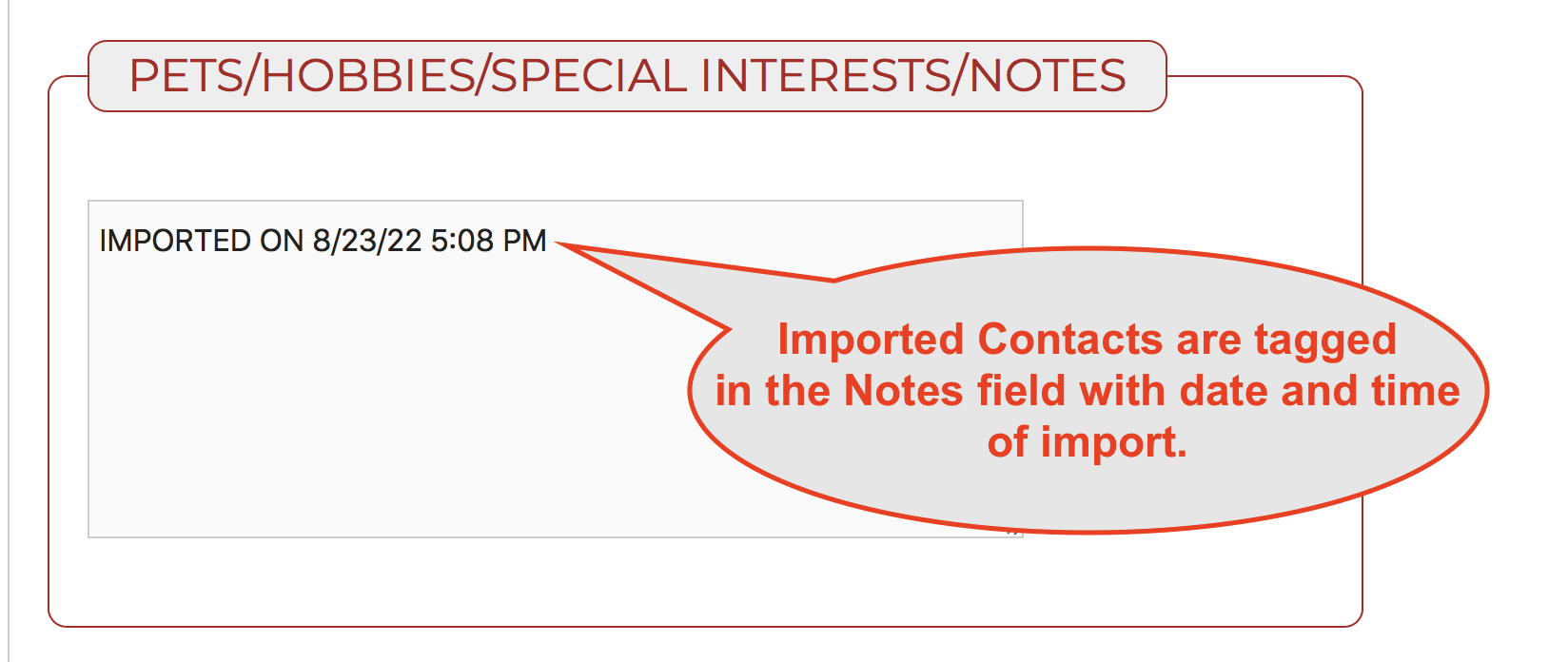
3. Copy the note that shows the date and time the Contact was imported.
4. Go back to the All Contacts screen.
5. Paste the copied text into the search field.
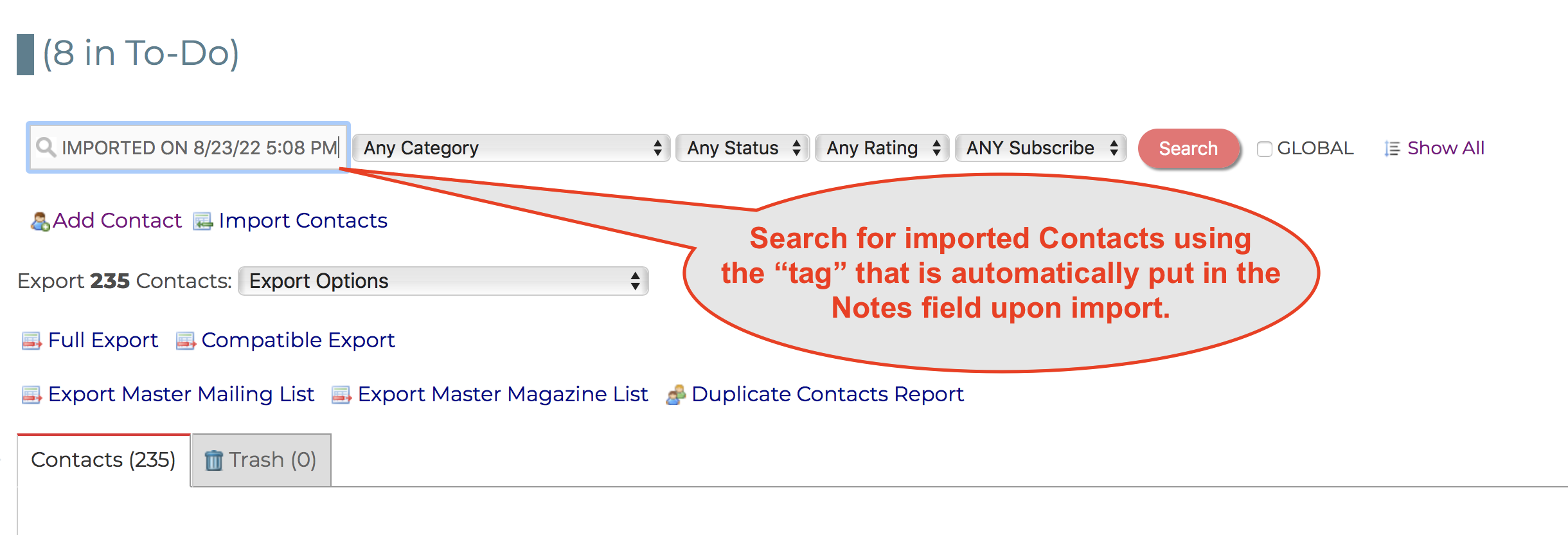
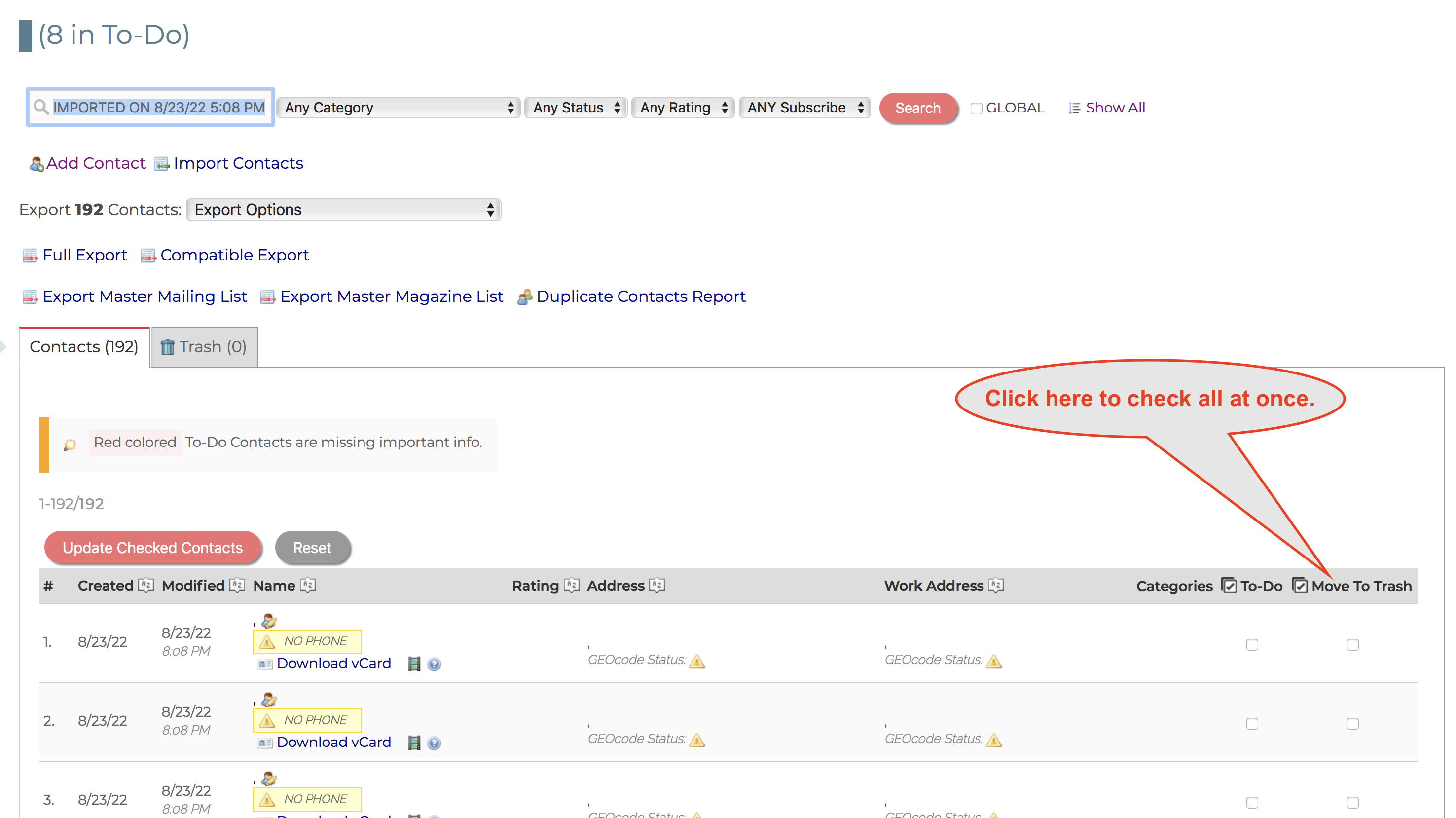
6. Once all your imported Contacts are displayed you can take action on them such as moving them to the trash so you can re-import. You can optionally delete the Trash to permanently delete the Contacts.
Comments
0 comments
Please sign in to leave a comment.