
Learn how to create a mail rule in Outlook to help mark messages as important.
1. Login to eLMO
2. Click Email
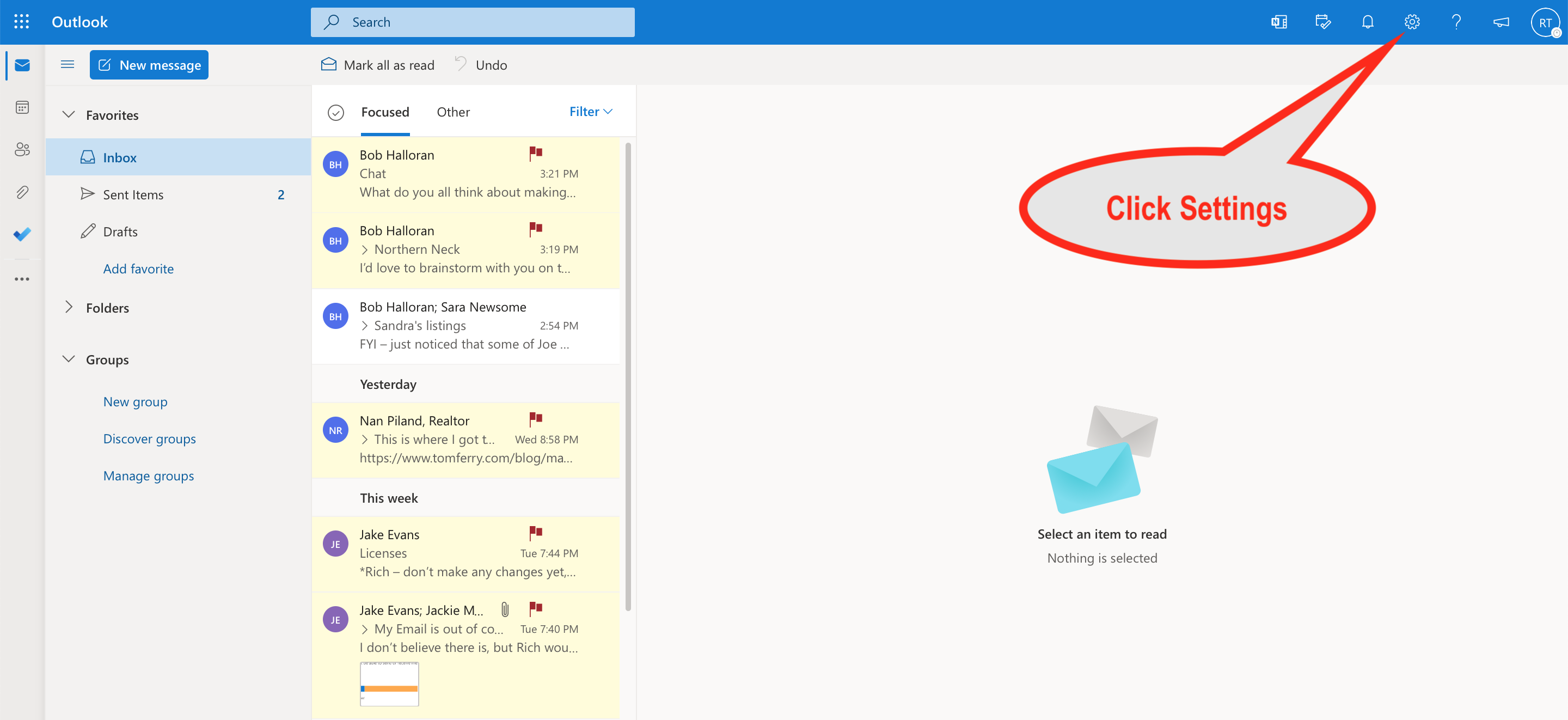
3. Click Settings (the little gear icon)
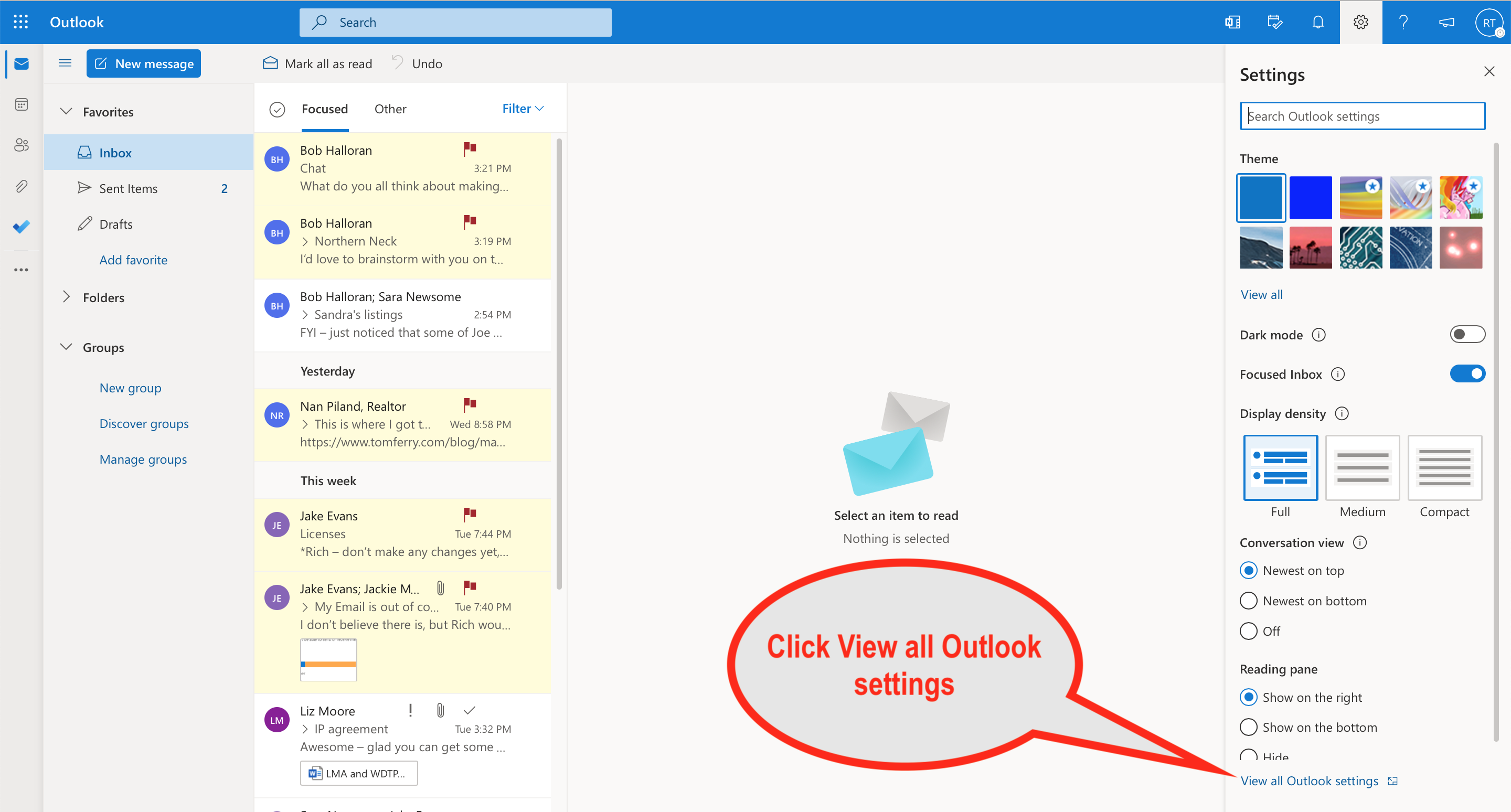
4. Click View all Outlook settings at the bottom.
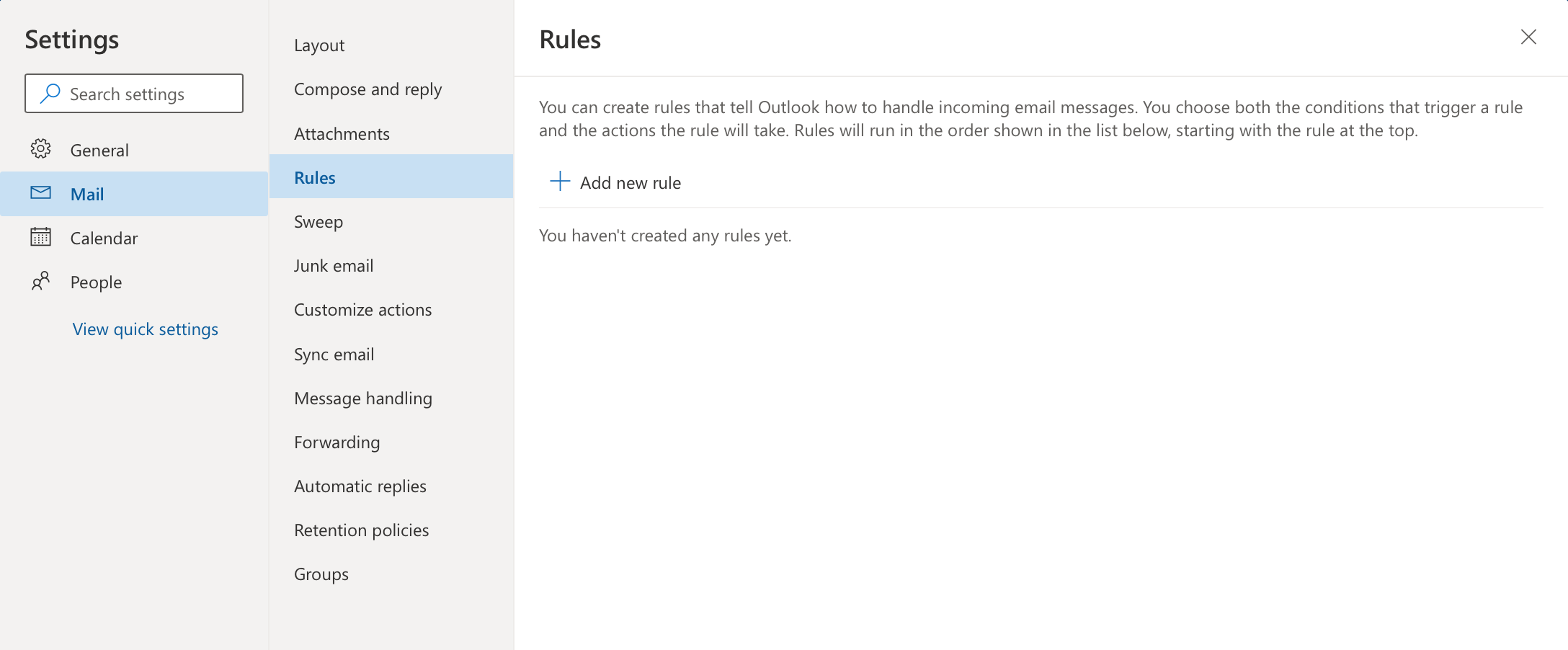
5. Click Mail > Rules
6. Click Add new rule
7. Give it a name, add conditions and choose actions you want to happen when a message matches your conditions.
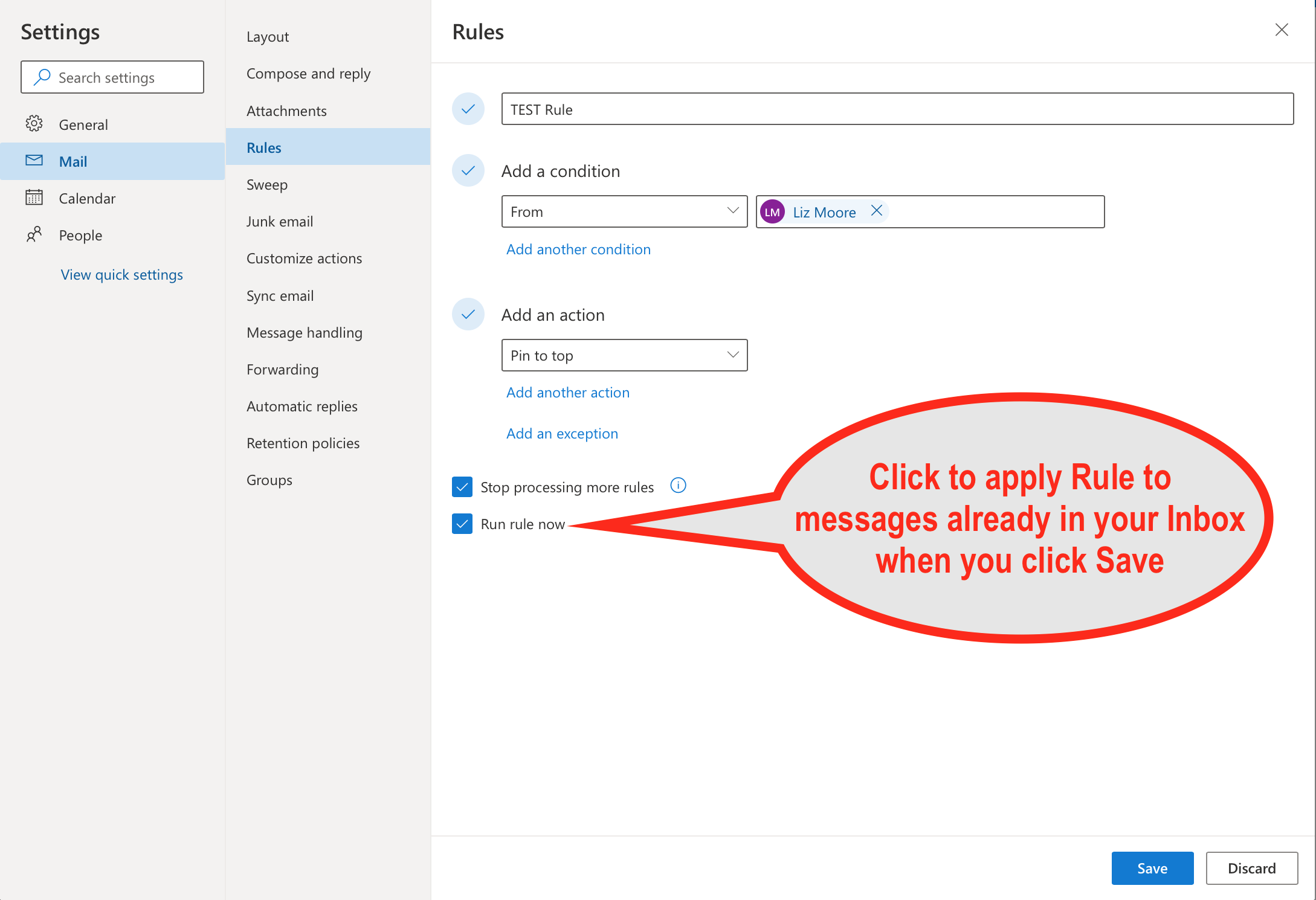
TIP: Check the "Run rule now" box to apply the Rule to messages already in your Inbox.
8. Click "Save" and you're done!
Comments
0 comments
Please sign in to leave a comment.