
Login to eLMO.
Click on Connections.
If you would like to add one contact to a category, click on the Contacts tab.
Search for that contact, click on the name to open the record, and click edit contact.
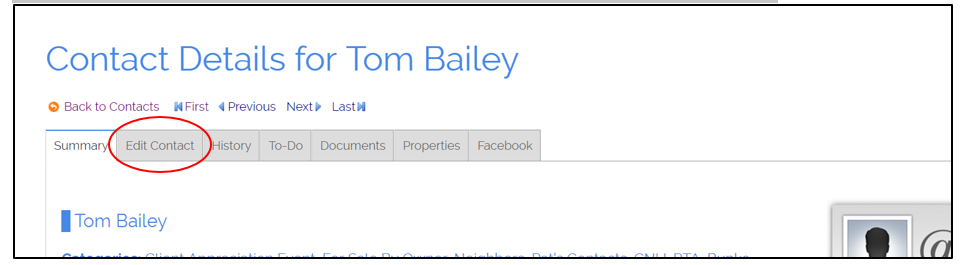
Scroll down to the Category section. To add the contact to a category, click the box next to the category name in the Unassigned Categories section and then click update. If your contact is in a category already and you’d like to remove them, click the box next to the category name in the Assigned Categories section and click update.
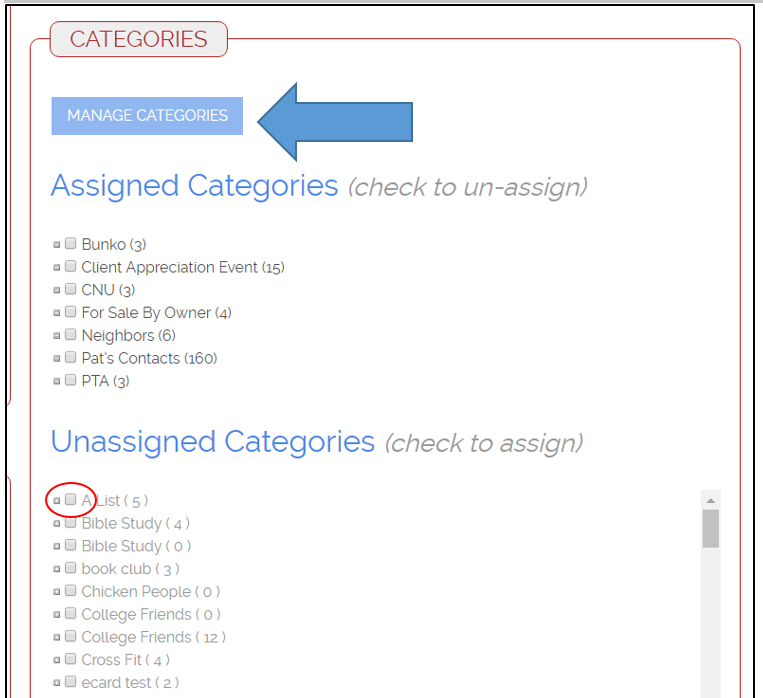
If you’d like to add a custom category (meaning the category you want isn’t on the list of available categories, click on the Manage Categories button.
Give the category a name and click Add.
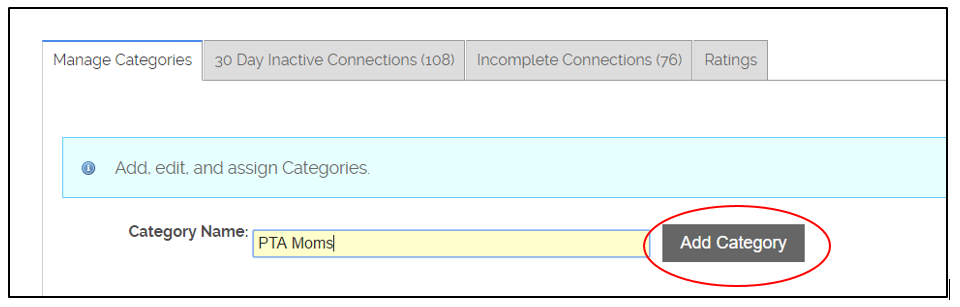
Then, you can go back to your contact record and assign.
If you would like to add multiple contacts to a category at one time, click on the Planner tab.
Click Assign/Unassigned next to the category name.
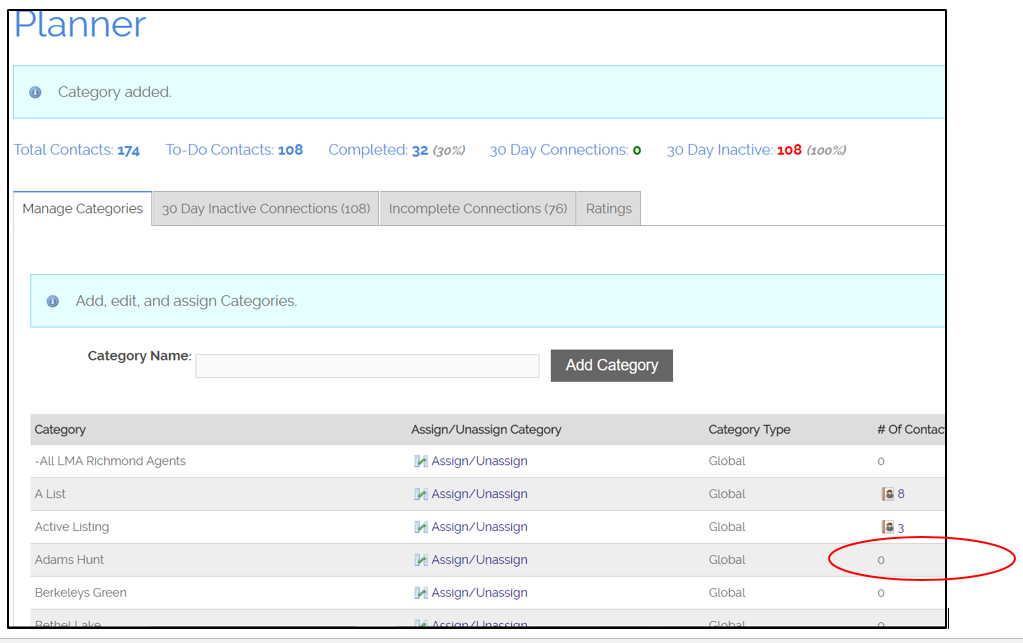
This will bring up a list of all of your contacts. You can go down the list of contacts and check the box next to the contacts you’d like to add to that category. Once you’ve done that, click Assign/Unassign.
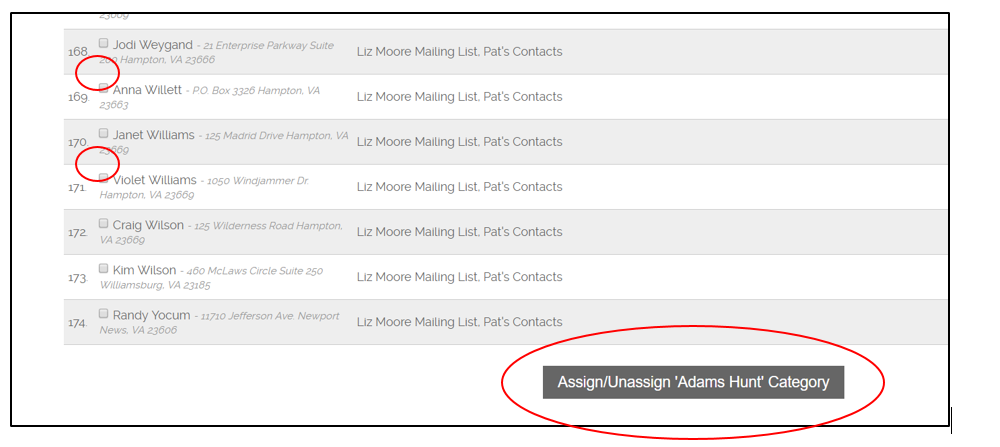
If you want to take multiple contacts out of a category at one time, follow the same steps and uncheck the boxes. Then, click Assign/Unassign.
Comments
0 comments
Please sign in to leave a comment.