
Learn how to access your Agent Profile QR-Code and download it or copy it to send in eCards.
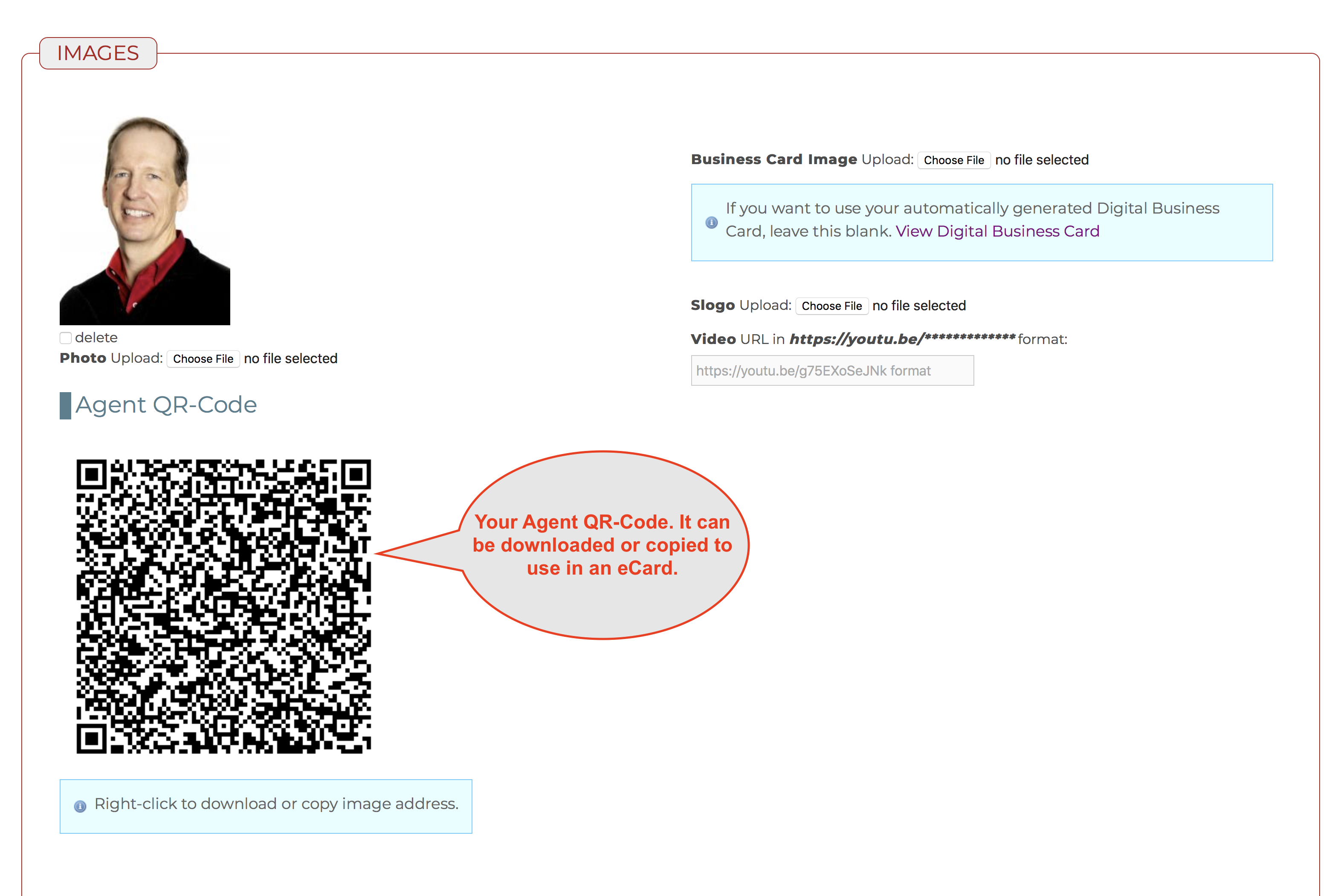
Find Your QR-Code
- Go to your eLMO Profile.
- Scroll to the IMAGES section.
- You will now see an automatically generated QR-Code with your contact info embedded.
- Right-click (or Control-Click on a Mac) to get additional options.
Download Your QR-Code
- Choose "Save Image" (or something similar) to save the image to your computer hard drive.
Use in an eCard
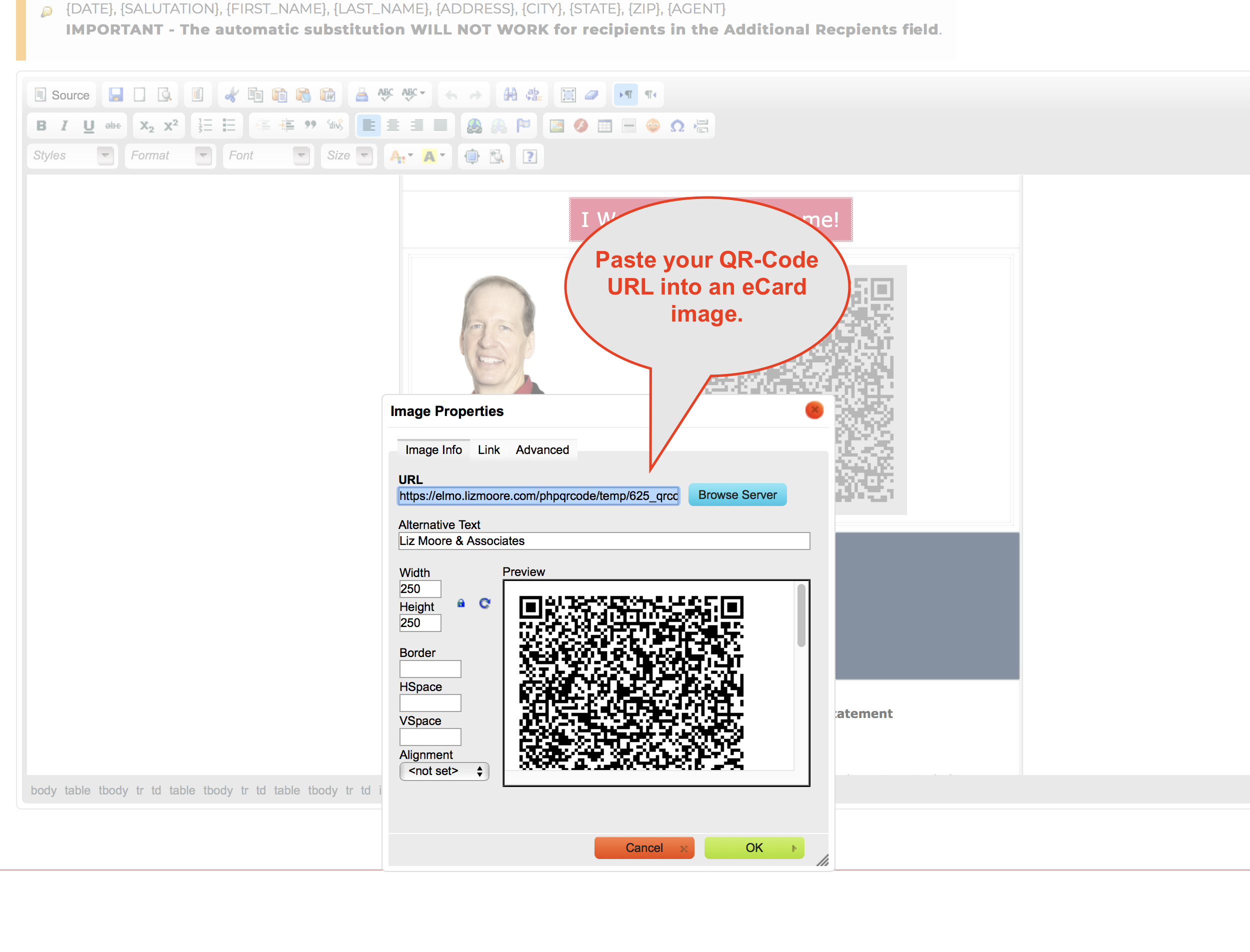
- Choose "Copy Image Address" (or something similar) to copy the URL of the image to you computer clipboard.
- Go to eCards & Email Marketing and open an eCard in the editor.
- Insert a new image or double-click on existing image you want to replace with your QR-Code.
- Paste the URL you previously copied into the URL field of the Image window.
- Adjust the size as needed.
That's it!
Comments
0 comments
Please sign in to leave a comment.