
Learn how to use the Showing Book to add showings to property records in eLMO.
Login to eLMO and click on “Showings” on the left hand side.
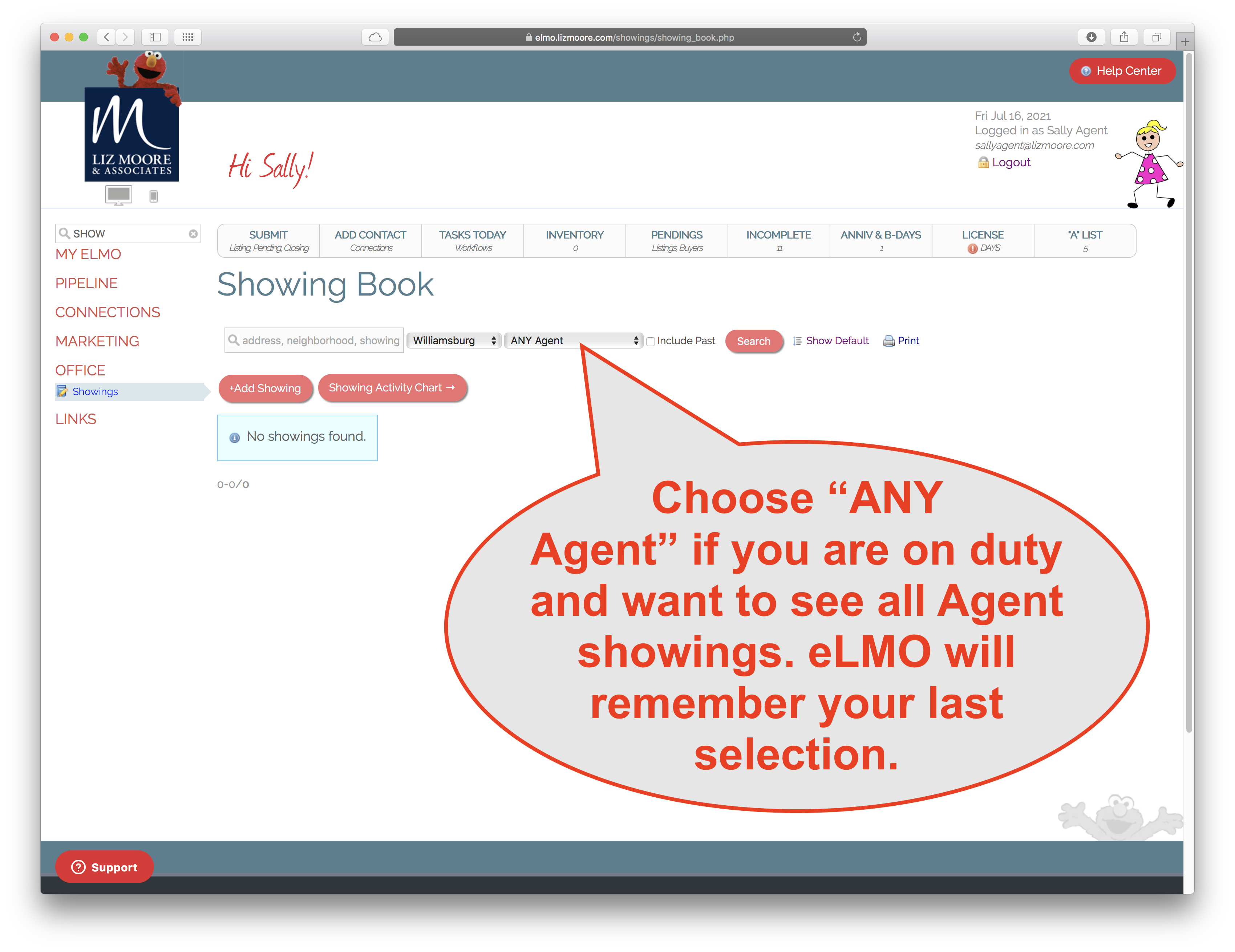
The default view is YOUR Showings. Chose "ANY Agent" to see all Showings for a given office. eLMO will remember your selection so you won't have to keep changing it.
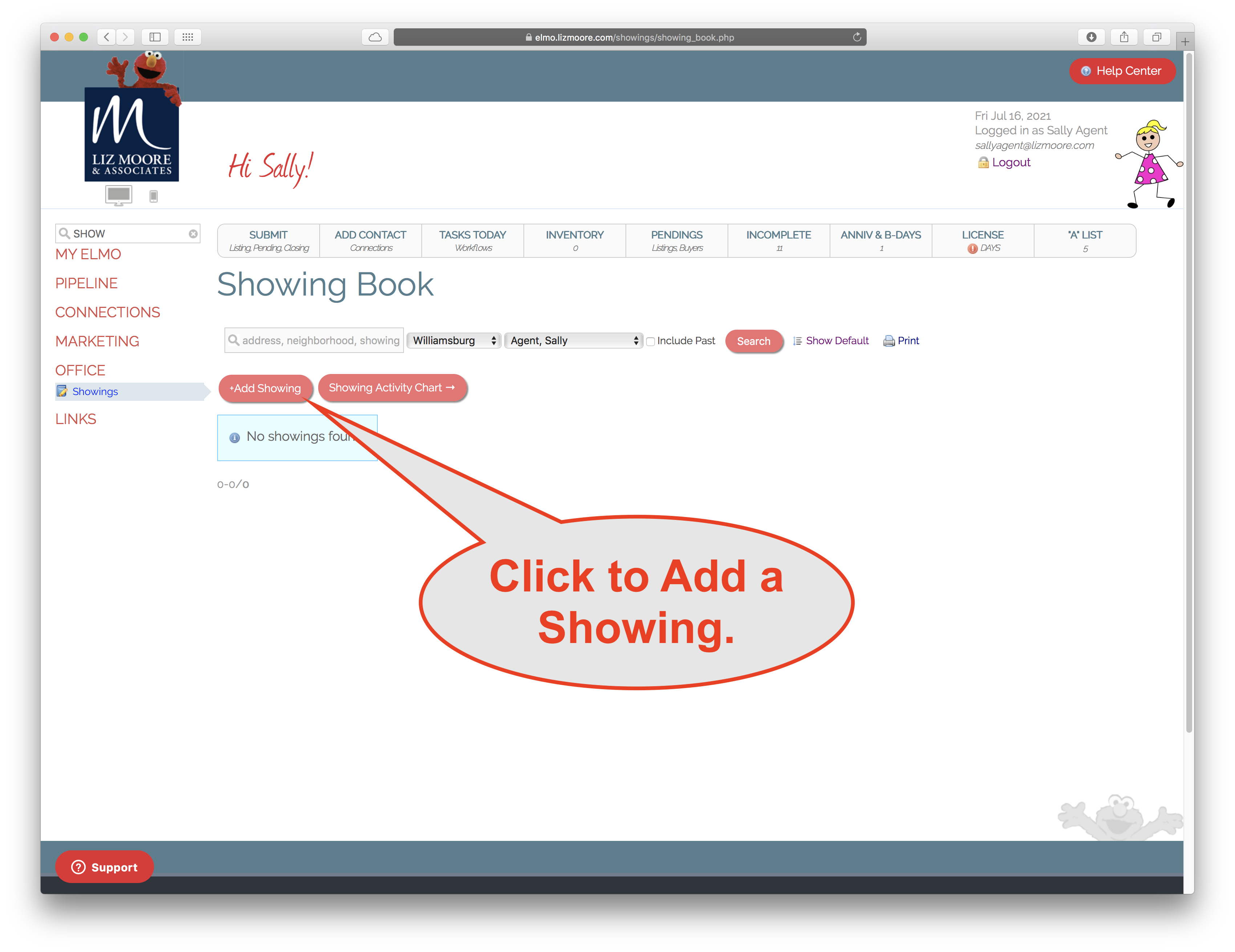
Click “Add Showing”.
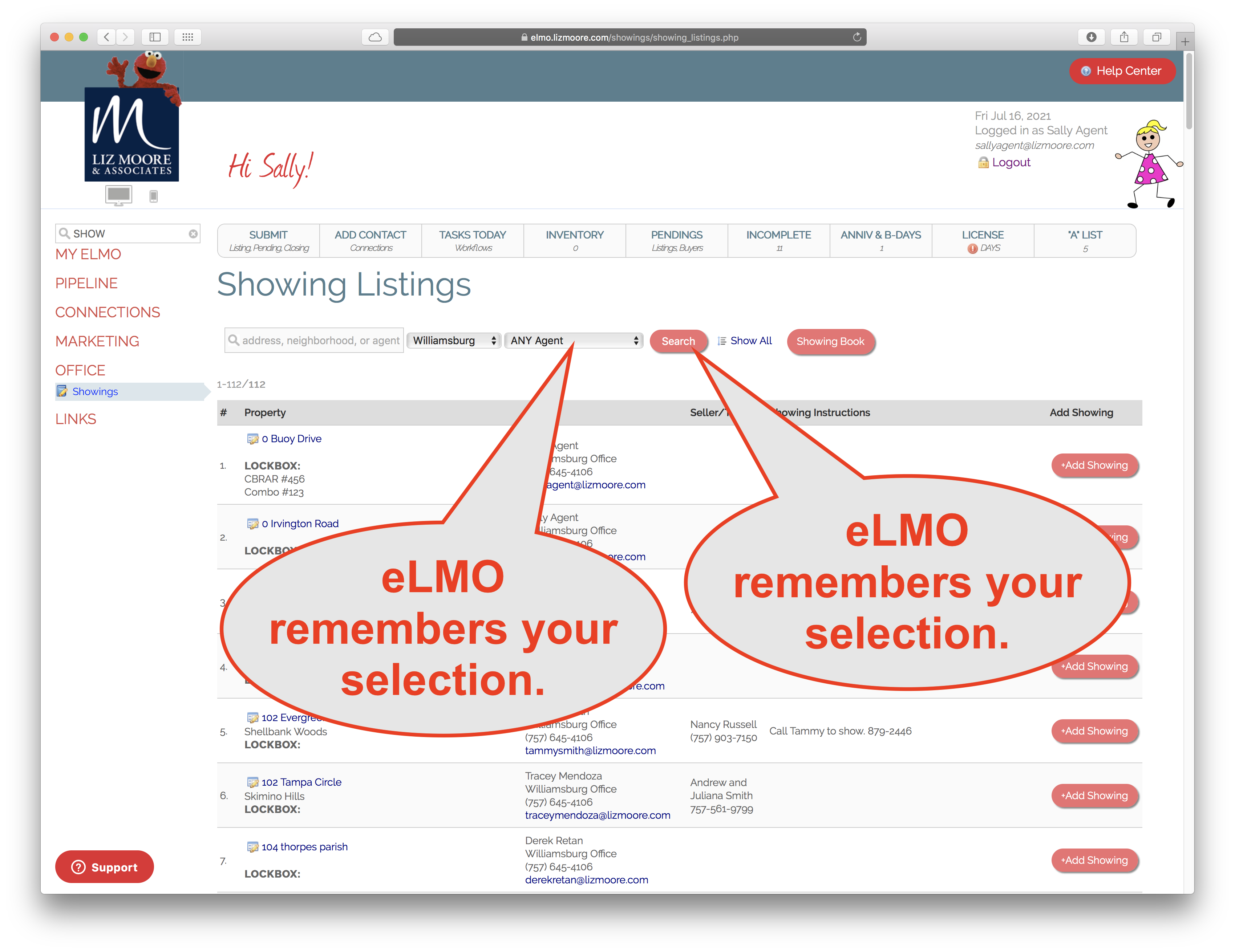
Search for the address that is being shown.
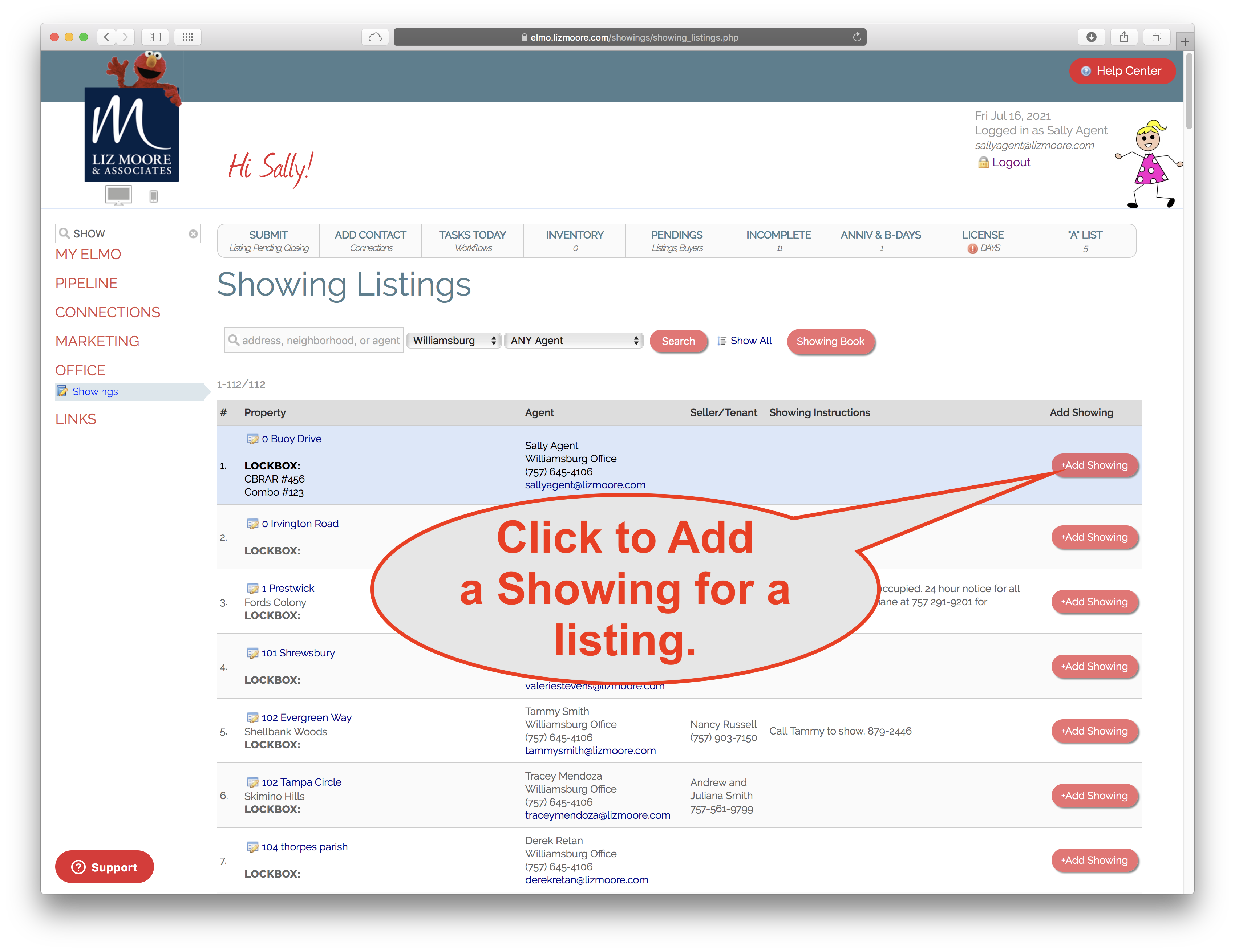
Follow the showing instructions and then click “Add Showing” when ready to schedule.
If there are upcoming showings scheduled for that listing, they will show above the form.
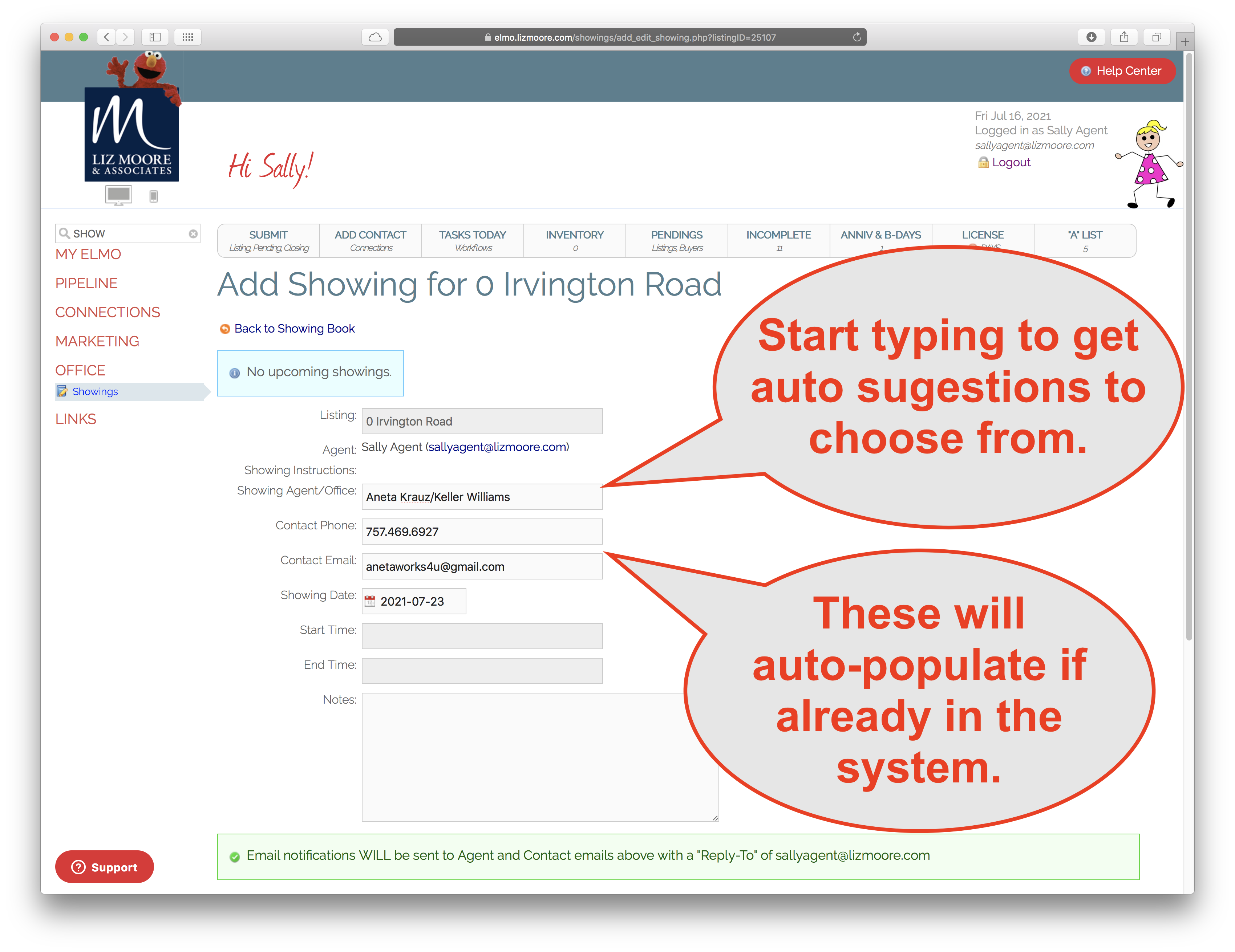
Start typing in the Showing Agent/Office and it will auto-suggest choices to select.
If the Showing Agent is already in the system the phone and email will auto-populate AFTER you select the Showing Agent and leave the form field.
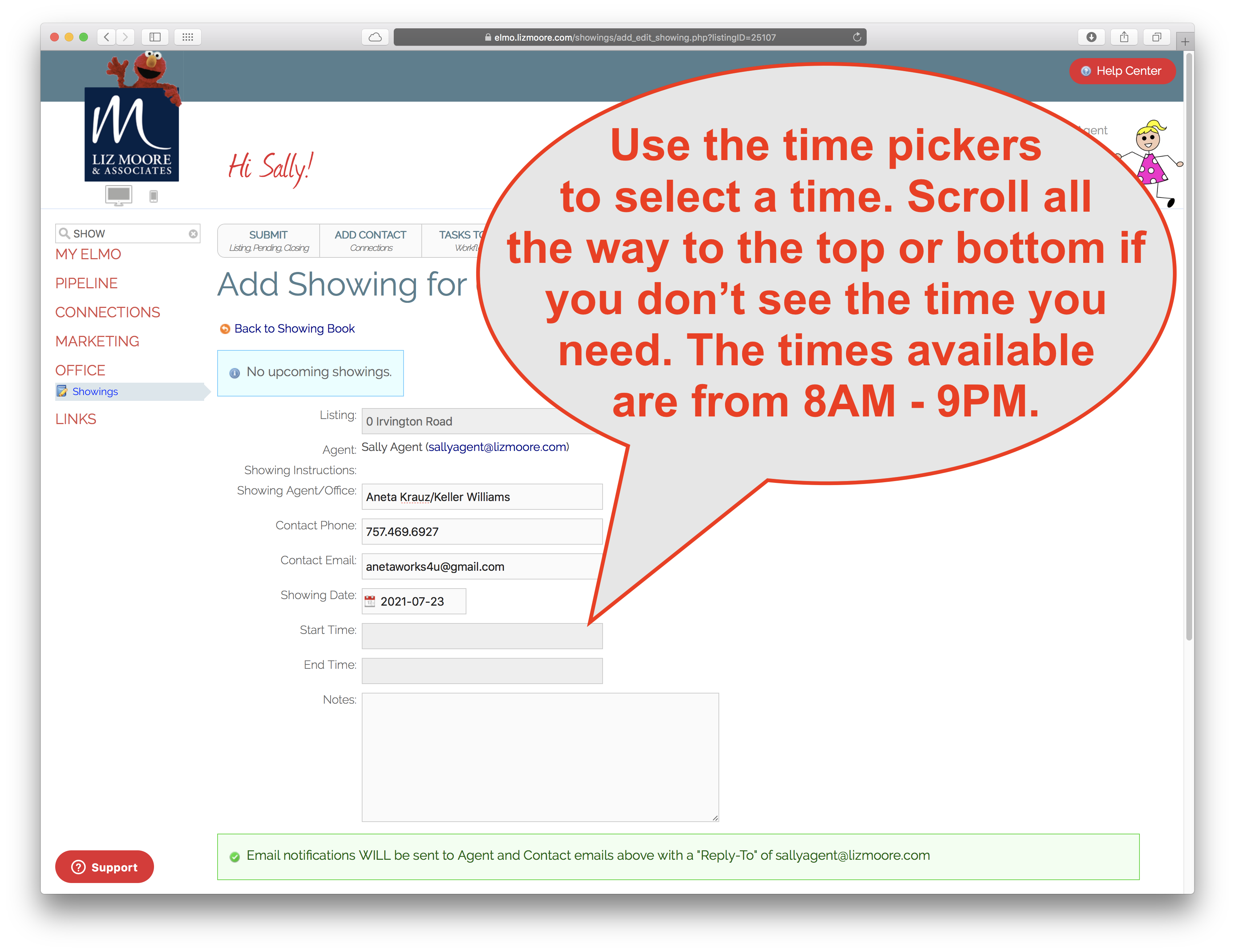
Use the time pickers to give it a Start and End time.
Fill in all fields and click “Add Showing”. A confirmation email will be sent to the listing agent and showing agent.
Comments
0 comments
Please sign in to leave a comment.